Learn How to Get Started with QuantLogic
Start with Trade Analytics: upload a CSV of your trades or connect Tradovate read-only, and see where your money actually comes from. Existing NQ Pilot subscribers will find their video guides at the bottom. Total watch time: ~32 minutes.
Want to see what the splits look like? Real examples from real trades →
Start here: four short tutorials
Watch them in order. Each one zooms in on the part of the page it explains.
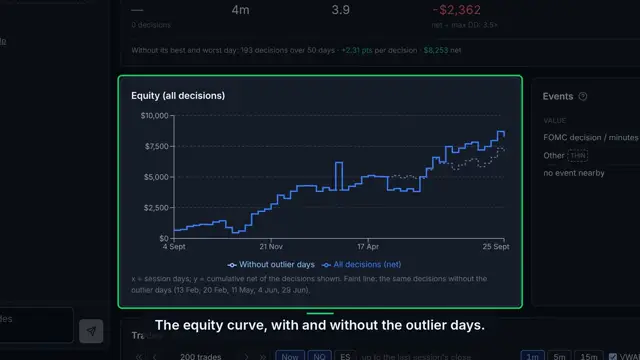
Getting started
The demo, bringing in your own trades, the Filters bar, the Trades chart, data point cards and Ask QuantLogic.
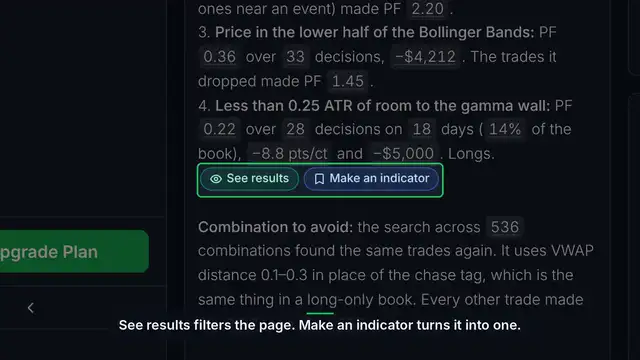
What works, and Beats luck
Ask what works, read the answer, and see what the Beats luck badge checks.
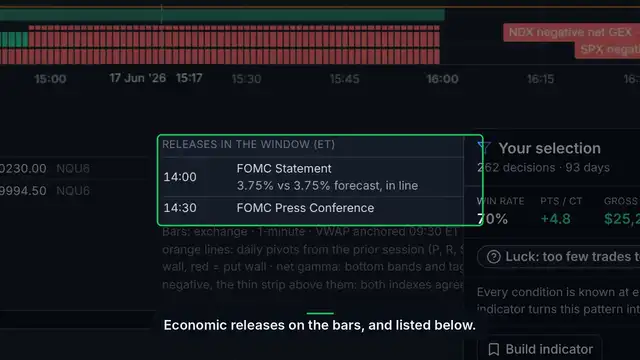
The Trades chart and indicators
Step through your trades, build an indicator from a data point card, and follow its flags on the chart.
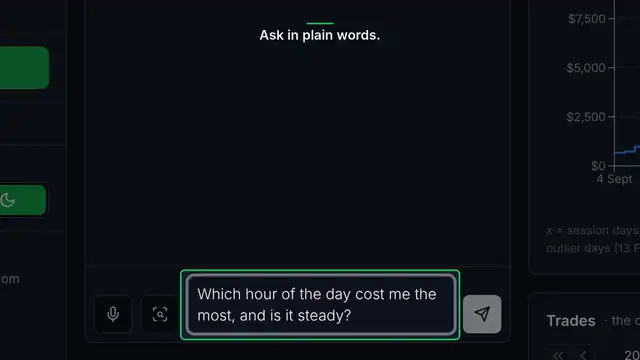
Ask QuantLogic
Ask questions about your trades in plain words or by voice, and get help with everything else.
Short videos
Each one is a minute or so, straight to the point.
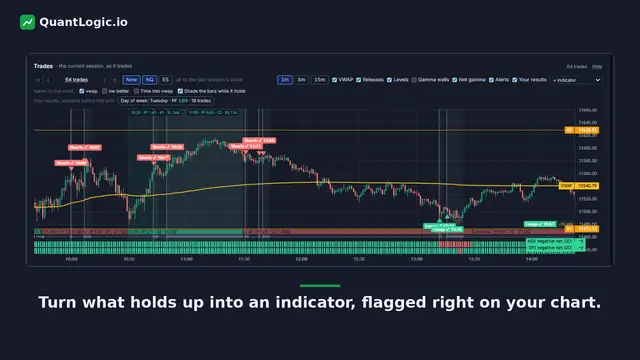
QuantLogic in 35 seconds
Your trades on the market as it was, what works, the luck check and your indicator on the chart.
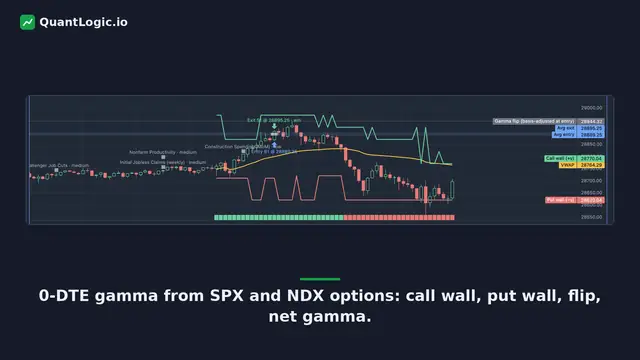
Data points on every trade
0-DTE gamma levels, open interest, yesterday's settlement, who moved the market, and price action at your entry.
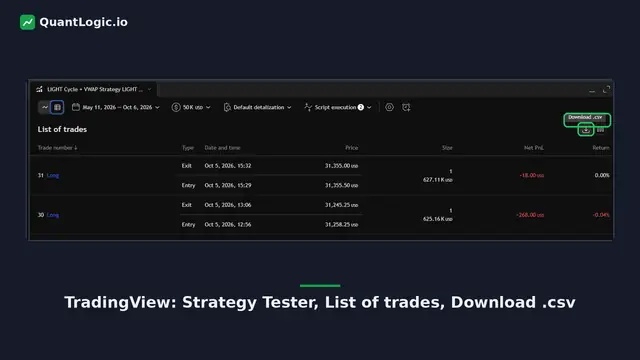
Import from TradingView or Tradovate
Download your trades as a CSV, upload it, or connect Tradovate read-only.
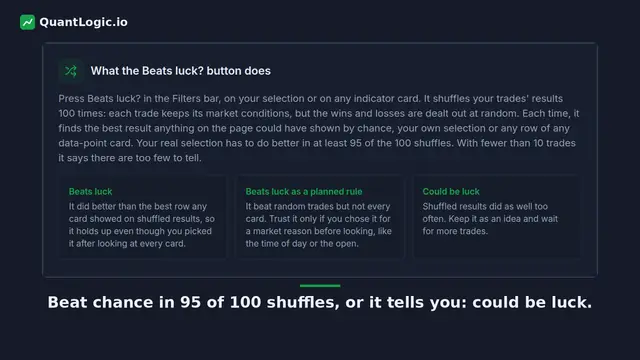
How we avoid curve fitting
Why hindsight fools you, what Beats luck? checks, and why we recommend picking data points by hand.
Trade Analytics
Two ways to bring your trades in. Explore the demo first; you pick a plan only when you add your own trades.
Upload a CSV of your trades
Bring your trade history from any platform. Every fill is placed on 1-minute market context the moment it lands.
- 1Export your trades as a CSV from your broker or prop firm platform.
- 2In the dashboard, open Upload and drop the file in. Pick a folder, or make a new one.
- 3Open the folder. Your trades are placed on time of day, session, VWAP, GEX levels and events.
Connect Tradovate (read-only)
Link a Tradovate account and we follow your fills as they happen. We only read; we never place orders on an Analyze plan.
- 1In the dashboard, choose Connect Tradovate and sign in with your Tradovate credentials.
- 2Pick the accounts to follow and the folder they belong in (by prop firm, by instrument, however you like).
- 3New fills show up on the page as they happen, with the same market context as uploaded trades.
For existing NQ Pilot subscribers
Video guides for the remaining NQ Pilot subscribers. NQ Pilot is no longer offered to new customers.
Connecting Your Prop Firm Account to QuantLogic
Step-by-step guide to connecting your PropFirm account to QuantLogic for live trading. Learn about the credentials required and how to manage multiple accounts.
Setting Up Your Account to Receive Signals
Ensure your account is properly set up to start receiving signals. Learn how to enable trading, sign the disclaimer, and configure the recommended contract settings.
Understanding Credentials in Prop Trading Firms
Learn about the credentials you need for navigating the prop firm world. Understand what credentials are required to connect your account to QuantLogic for receiving signals.
Navigating Your Trading Dashboard for Optimal Performance
Learn how to effectively set up your trading dashboard by connecting your accounts, activating protection features, selecting strategies, and adjusting contract settings based on your prop firm's drawdown type.
Using the AI Trading Coach
Discover how the AI coach can assist you with questions about trading strategy, contract sizing, trading frequency, and statistical insights about our trading approach.
Introducing QuantLogic: A Robust Trading Strategy
Learn about the QuantLogic trading strategy, our 25+ years of experience in automated trading, the importance of patience, and how our redundancy service protects your positions.
Understanding Prop Firms: Evolution and Current Landscape
Learn what prop firms are today compared to their origins. Understand how the industry has evolved and discover reputable prop firms compatible with platforms like Tradovate and NinjaTrader.
Getting Started with a Prop Firm Account
Walk through the process of getting started with a Prop Firm account. Learn about evaluation accounts, profit targets, and how to choose the right account size for your trading.
Ready to Get Started?
Explore the demo free. No card needed. Upload your trades or connect Tradovate when you are ready.